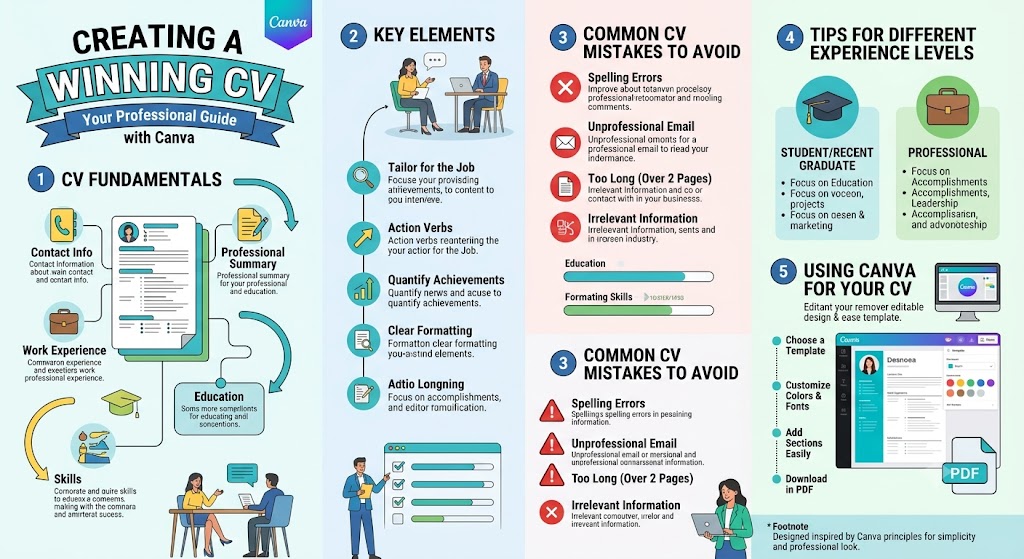
This material will teach you how to create your own CV using Canva.
Course Content
HOW TO CREATE CV USING CANVA
Step 1: Choose and Set Up Your Template
Open Canva and log in to your account.
In the search bar on the homepage, type "Resume" or "CV" and press Enter.
Browse the template gallery or filter by style (e.g., Modern, Minimalist, or Professional). Click on a template that fits your industry to open it in the editor.
Step 2: Personalize the Content and Visuals
Update Text: Double-click on the placeholder text to replace it with your details—such as your professional summary, work experience, education, and skills.
Replace the Photo: Click on Uploads in the left toolbar to upload a professional headshot, then drag and drop it into the existing photo frame.
Customize Design: Adjust font styles, font sizes, and color schemes using the top toolbar to match your personal brand or standard industry preferences.
Step 3: Review and Download as PDF Standard or Print
Proofread: Review your layout, margins, alignment, and check for any spelling errors.
Download: Click the Share button in the top-right corner, select Download, and set the file type to PDF Standard (for online applications) or PDF Print (for printing).
Save the file to your computer and submit your new CV.